
How to Use Komikku App on Android
New to Komikku? You'll start by adding a source, saving a series and opening a chapter. Follow the steps below, then set up offline reading and backups when you're ready.
Komikku Setup Requirements
- Install the Komikku APK on a phone or tablet running Android 8.0 or newer.
- Open the app and follow the storage prompts.
- Choose the location you want to use for your reading files.
Don't worry if your library looks empty. You haven't added any books yet. The reader displays content you provide, and some menu labels may look a little different depending on your version.
Adding Sources and Local Manga Files
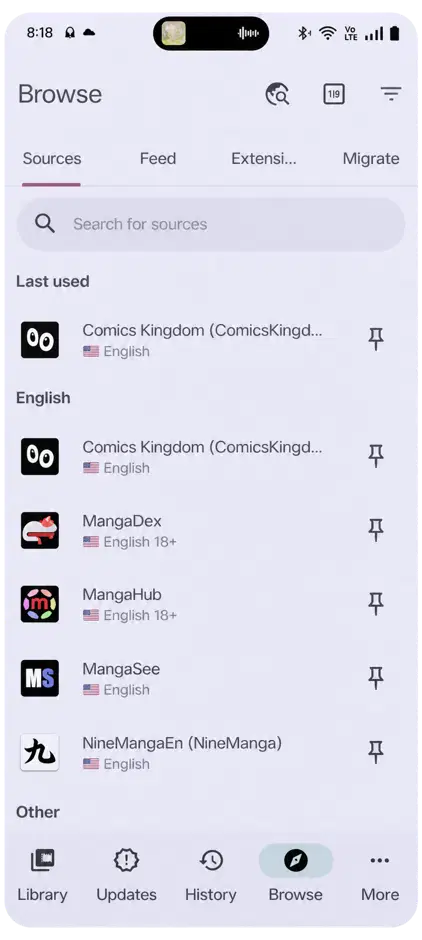
- Open Browse.
- Add a compatible extension repository you trust.
- Install the extension you want.
- Check the Sources tab for the installed source.
Your version may call repository management Extensions or Extension stores.
Komikku doesn't provide a universal extension collection. Check an extension before you install it, and make sure you have the right repository address. A normal manga website URL isn't necessarily the address the app needs.
Already have comics saved on your device? Choose the local-source option and put supported files in the selected storage structure. Use files and sources you have permission to access.
Finding Manga in Komikku
- Open a source and search for the series you want, or browse its available listings.
- Tap a series to open its details.
- Choose Add to library.
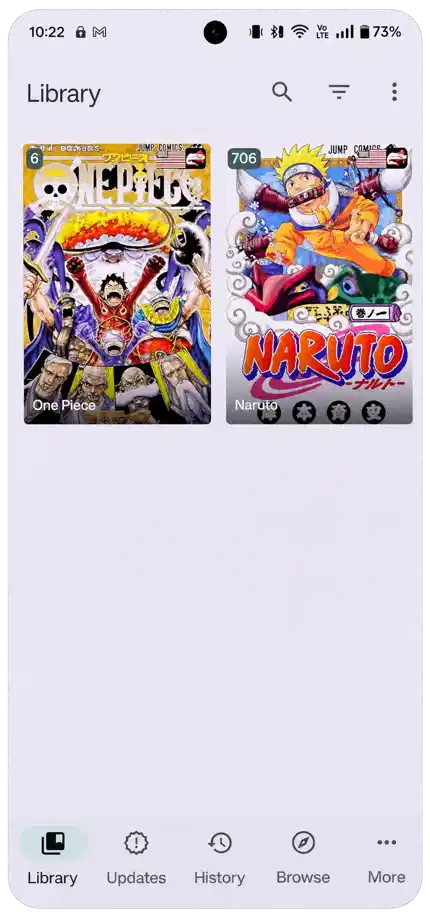
- Go back to Library and look for its cover.
Can't find a title? Try a different spelling or its original-language name, and check the source's language.
You've saved the series, but you haven't downloaded all its chapters.
Try this with one title first. Once you can find it in your library and open a chapter, adding more series will feel much easier.
Komikku Reader Settings and Reading Modes
- Open your saved series and tap a chapter, or use Start or Resume if available.
- Tap the page area to bring up the reader controls.
- Open the viewing options and choose a reading layout.
- Adjust the reading direction, scaling and background to suit your screen.
Choose a paged layout for traditional manga or vertical scrolling for long webtoons.
When you come back, your reading history helps you pick up where you stopped. If a page won't load, leave the reader and open the chapter again before changing other settings.

Library Categories and Offline Downloads
Organizing Manga Categories
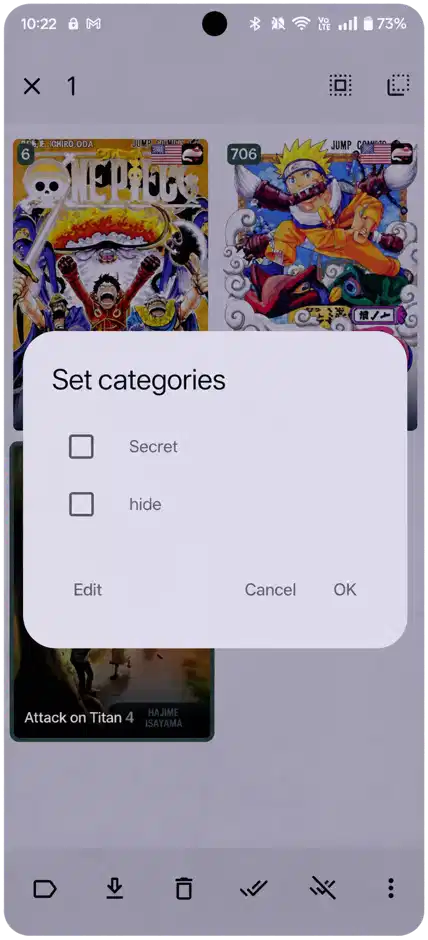
- Long-press a library entry to select it.
- Choose the category action.
- Select a category and confirm.
You can create names that suit your reading habits; the names in the screenshot are just examples.
Downloading Manga Chapters
- Open a series and tap the download option beside the chapters you need.
- Wait for the chapters to finish downloading.
- Open one with your connection off to check that its pages are saved.
Check your storage too: chapter files can take up much more space than the app.
You'll still need a connection to browse online sources and download new chapters.
Komikku Backups and Reading Progress
Creating a Library Backup
- Open More → Data and storage.
- Choose Create backup.
- Save the file somewhere you can find again.
Your backup can keep library data and settings, but you'll need to keep downloaded pages and extensions separately.
Connecting a Manga Tracker
- Open More → Settings → Tracking.
- Sign into a supported tracking service.
- Match each series to its tracker entry.
Signing in alone doesn't connect every title in your library.
Common App Setup Problems
- For an empty source, check its language and configuration.
- For stalled downloads, check storage and background settings.
- Try another chapter before reinstalling the app.
Komikku Setup FAQs
Why Is the Komikku Library Empty?
You need to save a series from a configured source or add local content first. Installing the app alone won't add books.
Does Komikku Require an Account?
You don't need a central account for basic local reading. A source or optional tracker may ask you to sign into its own service.
Is Komikku Available for iPhone?
No, these steps are for Android. You can't install an APK directly on an iPhone.
Completing the Komikku Setup
Start with one source, save a series and read a chapter. You can add categories, downloads and backups as you go. If you still need the app, head to the Android download guide.